Approve a User
Once your phones are connected to the network and loaded with their firmware and configuration files, you must approve log in to user phones so that you can start monitoring and configuring them. The network administrator can do this by importing a csv/zip file with the phones properties, or by approving the phones users one at a time.
Approving users is not required under the following circumstances:
|
●
|
When using the Zero Touch provisioning method. |
|
●
|
When importing a csv file containing devices (as well as users). |
|
1.
|
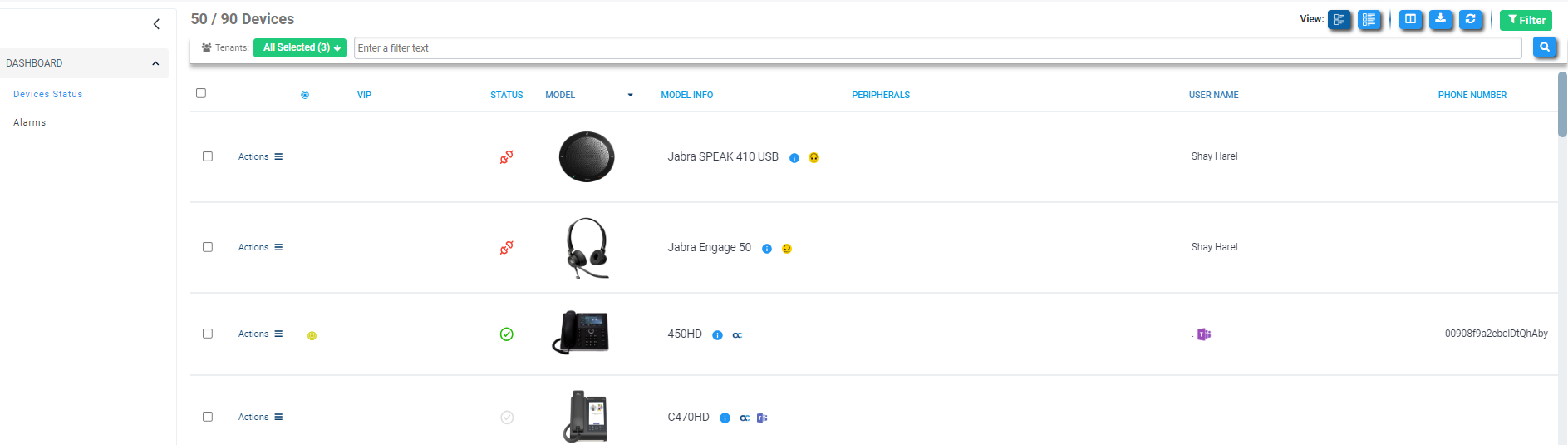
Open the Devices Status page (Monitor > Dashboard > Devices Status). |
|
2.
|
Optionally click the 'Export the devices to CSV file' icon; a csv file is generated; a download option is displayed. The same information on the page, e.g., Serial Number, which enables admin to efficiently manage devices stocktaking, is displayed in Excel format. |
|
3.
|
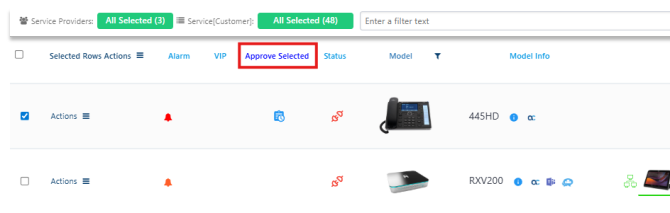
Select the relevant devices. If any of them requires approval, the Approve Selected link is added to the column headers. |
|
4.
|
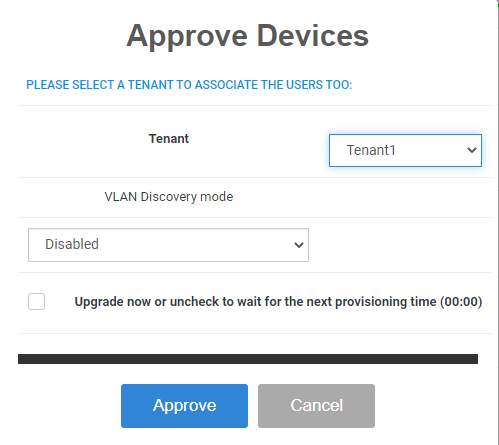
Click Approve Selected; you're prompted to approve the selected device/s. |
|
5.
|
In the prompt, select the tenant (i.e., service provider) and then click Approve; all selected users are approved; all phones restart; the cfg file is automatically uploaded to the phones from the OVOC provisioning server, which the DHCP server points them to. |
|
6.
|
From the 'VLAN Discovery mode' dropdown, select either: |
|
●
|
Manual Configuration [of the LAN; static configuration of VLAN ID and priority] |
|
●
|
Automatic - CDP [automatic configuration of the VLAN - VLAN discovery mechanism based on Cisco Discovery Protocol] |
|
●
|
Automatic - LLDP [automatic configuration of VLAN - VLAN discovery mechanism based on LLDP] |
|
●
|
Automatic - CDP_LLDP [automatic configuration of VLAN (default) - VLAN discovery mechanism based on LLDP and Cisco Discovery Protocol. LLDP protocol is with higher priority]. |